


Most directors don't go shopping for software because they're curious. They go because something broke. A billing month went sideways. The state asked for an immunization report nobody could pull in under three hours. A teacher quit and took the only working version of the schedule with her. By the time you're typing "daycare management software" into Google, you usually already have a specific wound you're trying to close.
This guide is built for that moment. It's for owners and directors running centers somewhere between 10 and 150 kids, who don't have an IT department, don't have weeks to burn on demos, and can't afford to migrate twice. We'll cover the real product categories, what actually matters in a feature list versus what's just shiny, how pricing tricks you, and a rollout plan that doesn't blow up your fall enrollment season.
One thing up front: there is no "best" system. There's a best fit for your size, your billing complexity, and your appetite for change. A 22-child center and a 3-location, 140-child operation should buy very differently, and a lot of bad purchases happen because someone picked the tool a much bigger center recommended.
The product subtypes — and when each one actually matters
People say "daycare management software" like it's one thing. It isn't. It's a bundle of modules that grew together over time, and different vendors are genuinely strong in different parts. Here's how the pieces break down and when each one deserves real weight in your decision.
Enrollment & waitlist. This handles inquiries, tours, waitlist position, age-band fit, and the move from "interested family" to "enrolled child." It matters most if you're growing, have uneven age-group demand, or lose leads because follow-up is manual. If you're consistently full with a stable list, this module is a convenience, not a dealbreaker.
Scheduling & attendance. Check-in/check-out (often parent-facing via kiosk or app), ratios, and classroom rosters. The value is in ratio visibility and clean attendance records. Weak attendance tracking quietly costs you on both compliance and billing accuracy.
Billing & payments. Tuition schedules, auto-pay, late fees, subsidy splits, and receipts. This module produces the most "I can never go back" feelings — and also has the most hidden cost, because payment processing fees live here.
Parent communication. Messaging, photos, daily reports, announcements. It's the most-used feature by families and the one that drives the perception that your center is well-run. It's also the easiest to over-value — a gorgeous app that doesn't fix billing won't save your month-end.
Staff management & HR. Timekeeping, credential tracking, PTO, and sometimes payroll export. Underrated. Centers with 15+ staff feel the pain of manual timesheets every single pay period.
Specialized modules. Meal/CACFP tracking, immunization and health records, curriculum and lesson documentation. These are make-or-break only if a program you rely on demands them — CACFP reimbursement, state health reporting, or accreditation evidence.
All-in-one vs. best-of-breed
This is the decision most people get wrong.
| Situation | Lean toward |
|---|---|
| Under ~40 kids, single site, limited admin time | All-in-one |
| You hate juggling logins and vendor relationships | All-in-one |
| Complex subsidy billing or unusual tuition rules | Best-of-breed billing + simpler everything else |
| Multi-site with existing payroll/accounting you love | Best-of-breed with integrations |
| Accreditation-heavy program needing deep curriculum docs | Best-of-breed curriculum module |
Small centers almost always do better with a single all-in-one platform, even if each individual module is a 7/10 rather than a 10/10. The operational cost of stitching four systems together — reconciling data, remembering which login does what, training staff on multiple apps — eats any feature advantage. Best-of-breed only pays off when you have one genuinely complex need (usually billing) and enough admin bandwidth to manage the integrations.
The feature checklist: must-haves vs. nice-to-haves
Print this out. When you're three demos deep, everything looks great and you lose the ability to compare. A fixed checklist keeps you honest.
Eliminate administrative bottlenecks.
Carexly helps you manage enrollments, attendance, and staff schedules effortlessly.
- Streamlined child enrollment
- Automated parent notifications
- Staff shift and activity scheduling
No credit card required
-
Family and child profiles with emergency contacts and authorized pickups
-
Attendance with timestamped check-in/out and ratio visibility
-
Recurring tuition billing with auto-pay and clear receipts
-
Subsidy/third-party payer handling (if any of your families use it)
-
Immunization and health record storage with expiration flagging
-
Secure parent messaging and announcements
-
Role-based access (a teacher shouldn't see financials)
-
Data export in a usable format (CSV at minimum) — you must be able to leave
-
Mobile access for staff and parents
-
Basic reporting
enrollment, attendance, revenue, aging balances
-
Meal/CACFP tracking
-
Curriculum and lesson documentation libraries
-
Waitlist automation and tour scheduling
-
Integrated payroll
-
Photo/video daily reports
-
Digital document signing for enrollment packets
-
Automated late-pickup and late-payment reminders
A quick warning on how feature lists lie: vendors check the box for "subsidy billing" when they technically can record a subsidy, but the actual workflow is painful. Don't trust the checkbox. Make them show you your exact scenario in the demo — split payer, partial month, mid-month withdrawal. The gap between "supported" and "usable" is where most buyer regret comes from.
Security, privacy & compliance for childcare
You're storing children's names, home addresses, health records, photos, and payment information. That's about as sensitive as data gets, and families trust you with it without really thinking about it. Most centers under-think this until something forces the conversation.
-
Data minimization — does the system let you collect only what you need, and purge records for families who've left on a defined schedule?
-
Access controls — role-based permissions so front-desk staff can't open financials and substitute teachers can't export the full family roster
-
Encryption — data encrypted in transit and at rest (ask them to confirm, not hand-wave)
-
Parental consent handling — especially for photos and any marketing use of a child's image
-
Audit logs — can you see who accessed or changed a record, and when?
-
Backups and recovery — where's your data, and how fast can you get it back if something fails?
-
State licensing reporting — can it produce the specific reports your state requires without manual rebuilding?
-
COPPA awareness — if children directly interact with any feature, or if data on under-13s flows anywhere, the vendor should understand COPPA's constraints
Photo-sharing features are a privacy blind spot worth flagging. Parents love them, but every photo of one child often captures other kids in the background. If your consent process isn't airtight about group images, a single upset family can turn a beloved feature into a liability.
If you want to go deeper on vetting vendors specifically around AI features, data use, and audit expectations, we covered it in detail in How the White House AI Executive Order Changes What Daycare Centers Must Ask Software Vendors. If any system you're evaluating uses AI for things like photo tagging, messaging suggestions, or enrollment scoring, read that before you sign.
Integrations & technical questions
Even all-in-one buyers should ask these, because the day you need to connect something, "we don't support that" is an expensive answer.
-
Can I export all my data myself, anytime, in standard formats? If the answer is "contact support," that's a soft form of lock-in.
-
Is there an open API or do integrations only go through partners?
-
Do you integrate with my accounting software (QuickBooks, etc.) and how — sync or manual export?
-
Is there a native payroll integration or export?
-
Do the parent and staff apps work on both iOS and Android, and are they actually maintained? Check recent app-store review dates.
-
Single sign-on? Matters more as you add staff and locations.
-
What's the uptime track record, and is there a status page?
The mobile app question deserves a second look. A lot of centers discover after purchase that the parent app has solid ratings but the staff app is an afterthought with ancient reviews. Your teachers will use theirs every single day. Test it on a real phone before you commit.
Pricing models and what they actually cost
Three common models, and each one favors a different kind of center:
| Model | How it's priced | Best for | Watch out for |
|---|---|---|---|
| Per-child | Monthly fee × enrolled children | Centers with stable enrollment | Cost spikes as you grow |
| Per-staff/user | By number of logins | Low staff count, high child count | Adding substitutes gets pricey |
| Flat tiered | Bands by center size | Predictable budgeting | Jumping a tier for one extra child |
Per-child pricing is the most common and usually lands somewhere in the low-to-high single digits per child per month depending on included modules. A 60-child center might see roughly $150–$450/month in subscription costs — that range is wide because the modules bundled and the vendor's tier make a real difference.
The hidden costs that wreck budgets:
-
Payment processing fees. This is the big one. Many platforms either mark up card/ACH processing or require their own processor. On a center running $80k–$120k a month through the system, even a half-percent difference adds up fast over a year. Ask for the exact processing rate in writing, and whether ACH is cheaper than card.
-
Onboarding/setup fees. Some charge a one-time implementation fee. Usually negotiable and often waived if you ask.
-
Premium integrations. The QuickBooks sync or advanced reporting sometimes lives in a higher tier.
-
Your own time. The biggest hidden cost isn't a line item — it's the 20–40 staff hours migration eats. Budget for it.
Get the all-in monthly cost including processing on your actual payment volume. The subscription price is usually the small part.
Demo evaluation: the questions that separate real fit from a good sales rep
Reps are good at demos. You need questions that break the script. Bring these twelve:
-
Show me how you'd bill a family on a subsidy split with a mid-month withdrawal.
-
Walk me through pulling an immunization report for a licensing visit — start to finish.
-
How does a parent set up auto-pay, and what happens when a card fails?
-
What's the exact payment processing rate for card and for ACH?
-
Show role-based permissions — hide financials from a teacher account live.
-
How do I export all my data if I leave you in two years?
-
What does migrating my existing families and balances look like, and who does it?
-
Show the staff app on a phone, not a browser.
-
How do families consent to photo sharing, and can I restrict group photos?
-
What's your uptime over the last 12 months, and where's the status page?
-
What's the total monthly cost for a center exactly my size, all-in?
-
Who do I call when something breaks at 7
45am during drop-off?
If a rep dodges question one, four, or six, slow down. Those three are where buyer's remorse concentrates.
Implementation: a realistic 30/60/90-day rollout
The most common migration mistake is cutting over during a busy enrollment window. Don't. Pick a stable stretch.
Here's how each phase actually plays out for a small-to-mid center:
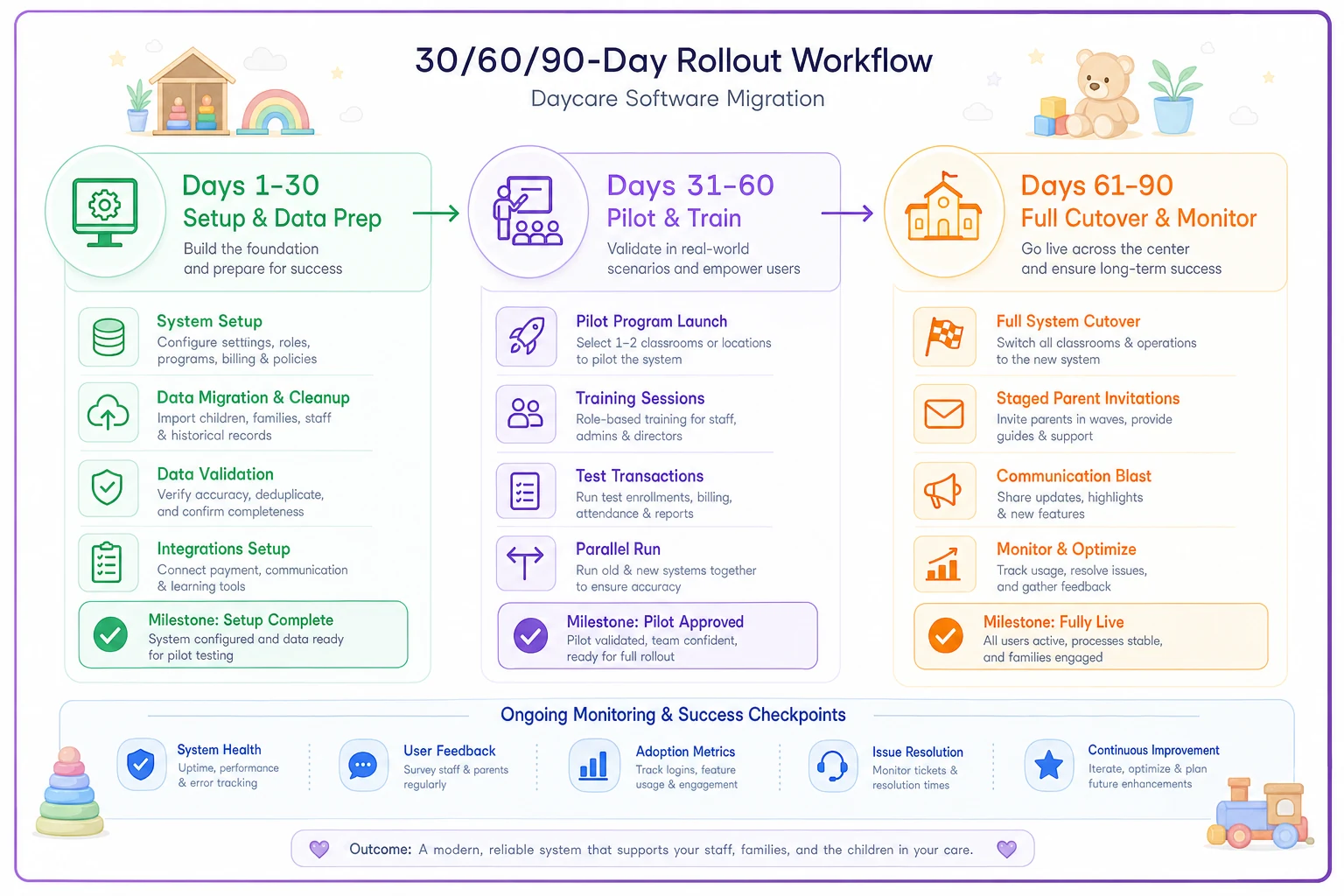
This visual shows the phased pilot and cutover flow.
Days 1–30 — Setup and data prep
-
Clean your data before importing. Garbage in, garbage forever.
-
Export current family list, balances, immunization dates, authorized pickups
-
Configure tuition schedules, fees, and user roles
-
Set up payment processing and test it with a dummy transaction
-
Pick your go-live date in a calm period
Days 31–60 — Pilot and train
-
Run one or two classrooms on the new system in parallel with the old
-
Train admin staff first, then teachers, in short focused sessions (not one marathon)
-
Reconcile the pilot classroom's billing against your old numbers
-
Draft a simple one-page parent guide
Days 61–90 — Full cutover
-
Go live for all families
-
Invite parents in waves, not all at once — support can't handle everyone on day one
-
Watch the first full billing cycle closely and reconcile carefully
-
Keep the old system in read-only mode for 60–90 days as a safety net
Staff adoption, not software quality, is what decides whether this works. Train in small groups, give one person per classroom "champion" status, and expect a two-to-three week dip in speed before things get faster. Parents need even less — a short video and a one-pager usually covers it.
A real scenario, with numbers
A center with about 55 kids and 11 staff ran billing on a spreadsheet plus a card terminal at the front desk. Late and missed payments were chronic, and the director spent the better part of two days every month chasing balances and rebuilding reports. Immunization tracking lived in a binder, which turned every licensing visit into a scramble.
After moving to an all-in-one platform with auto-pay and expiration-flagged health records, two things changed quickly. Outstanding balances dropped noticeably within the first two billing cycles — auto-pay removed the "I forgot" problem, recovering somewhere around $1,500–$2,500 a month in previously-slow tuition. Month-end billing went from roughly two days to a few hours. The immunization binder scramble disappeared entirely — the next licensing report took about ten minutes.
The subscription ran a few hundred a month, and the processing fees were real. But the recovered tuition and the director's reclaimed time covered it several times over. The point isn't the exact numbers — it's where the payback actually comes from: faster billing, fewer missed payments, and hours stopped vanishing into manual work.
Building the ROI case
You don't need a complicated model. Four numbers tell most of the story:
-
Time saved — hours/month on billing, attendance, and reports × roughly what an admin hour costs you. For many centers this alone is 15–30 hours a month.
-
Billing recovery — reduction in late/missed payments once auto-pay and reminders run automatically. Often the largest single line.
-
Reduced revenue leakage — attendance and subsidy accuracy catching money that used to slip through.
-
Retention — better communication quietly reduces churn, and keeping one family a few extra months is worth more than most software costs annually.
Add those up, subtract the all-in software cost (subscription plus processing), and most centers land clearly positive within the first few months — mostly from billing recovery and time, not fancy features.
When buying new software is actually a bad idea
A few honest situations where you should wait:
-
You're mid-crisis. Don't migrate during a staffing meltdown or a licensing probation. Stabilize first.
-
Your real problem is process, not tools. If your tuition rules are chaotic on paper, software will just automate the chaos faster. Fix the policy first.
-
You can't commit to the training. Software you half-adopt is worse than the spreadsheet everyone knows.
-
You're switching just to switch. If your current system works and the pain is mild, the migration cost rarely pays off.
Software you half-adopt is worse than the spreadsheet everyone knows.
Next steps
The centers that choose well do three unglamorous things: they define the one problem they're actually solving, they test their messiest real scenario in the demo instead of trusting the feature list, and they roll out during a calm stretch with real training. Do those three and you'll avoid almost every expensive mistake.
Start by writing down your must-haves, book two or three demos, and bring the twelve questions above. Make every vendor run your hardest billing and reporting scenario live. And if any of the systems you're weighing lean on AI features, read How the White House AI Executive Order Changes What Daycare Centers Must Ask Software Vendors before you sign anything — the vendor-vetting questions there have become part of due diligence, not an optional extra.
The right system won't magically fix your center. But the wrong one will quietly tax your time and your families' patience for years. Buy for fit, test for reality, and roll out with patience.
Ready to transform your daycare operations?
Join hundreds of daycare centers using Carexly to save time, improve communication, and enhance child care quality.